Import your images
Load one or more photos into the project library.
The 2026.3.14 interface is built around a simpler editing loop: import, arrange, scale, reorder, preview, and apply.
The current workflow is faster to understand and easier to control.
Load one or more photos into the project library.
Place the images inside the virtual desktop and choose a layout strategy.
Use the dedicated scale mode to resize a photo while preserving its ratio.
Send an image backward or bring it forward when elements overlap.
Use the realistic output preview, then export, split, or apply on Windows.
The new layout keeps the most important actions at the top and the stage in the center.
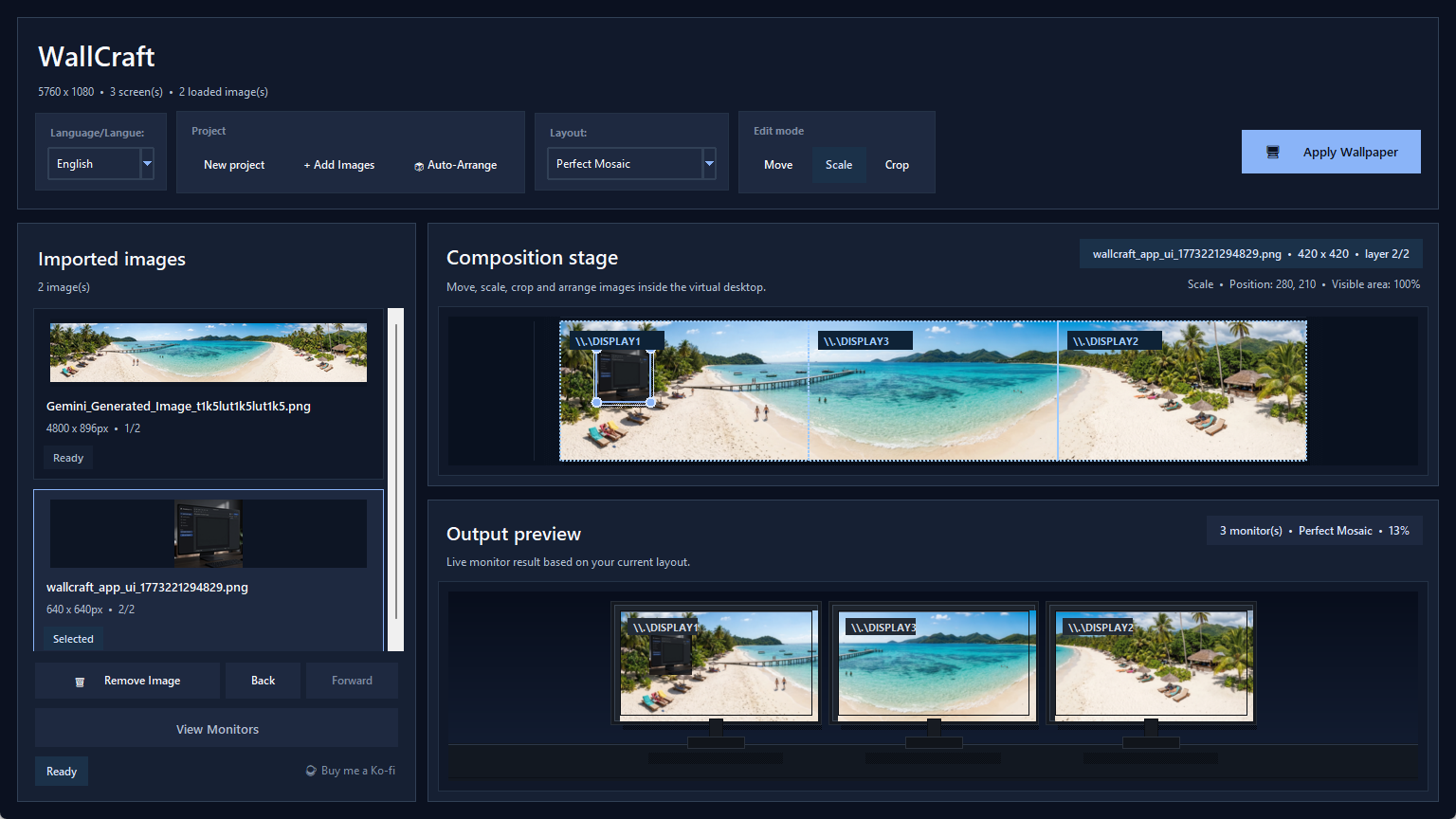
The new project button, compact library, and edit modes make the tool easier to use from the first launch.
The editing stage is larger and clearer, with direct monitor feedback and obvious handles.

Scale, crop, and move images directly on the virtual desktop while checking the real monitor map.
The refresh makes WallCraft feel more like a focused design utility than a technical tool.
The old inspector area is gone so the stage can breathe.
Mode-specific controls and handles explain what will happen next.
The output preview now communicates the result more clearly.
Download the app or jump into specific desk setups.
Download WallCraft Pro for Windows 10/11 and see what changed in the 2026.3.14 site and interface refresh: redesigned workspace, manual scaling, layer order, and realistic output preview.
Explore WallCraft Pro use cases for dual monitors, triple screens, laptop plus external displays, ultrawide setups, and mixed monitor sizes.
Create a dual monitor wallpaper on Windows 11 without cropping or distortion, even when the monitors have different sizes or alignments.
Read the WallCraft Pro FAQ about cropping, mixed monitor sizes, Windows support, split export, open source access, and download state.
Download the current build, test your monitor layout, and keep the GitHub repository nearby for updates and source code.